Wacom Intuos on Chromebook: Compatibility & Shortcuts
Quick Verdict
The wired CTL-4100 can work with a compatible Chromebook, but pen input and configurable ExpressKeys are separate requirements. Check the operating system, USB access and intended app.
Good for
- Beginning digital drawing with a compatible Chromebook and app
- Buyers comfortable keeping keyboard shortcuts on the laptop
Not for
- Anyone requiring Bluetooth from the wired CTL-4100
- Buyers depending on configurable ChromeOS ExpressKeys
- Managed devices where USB input is blocked
Buying Guide Notes · First published:
Compiled from public sources · Written using published specs and user feedback.
As an Amazon Associate I earn from qualifying purchases.
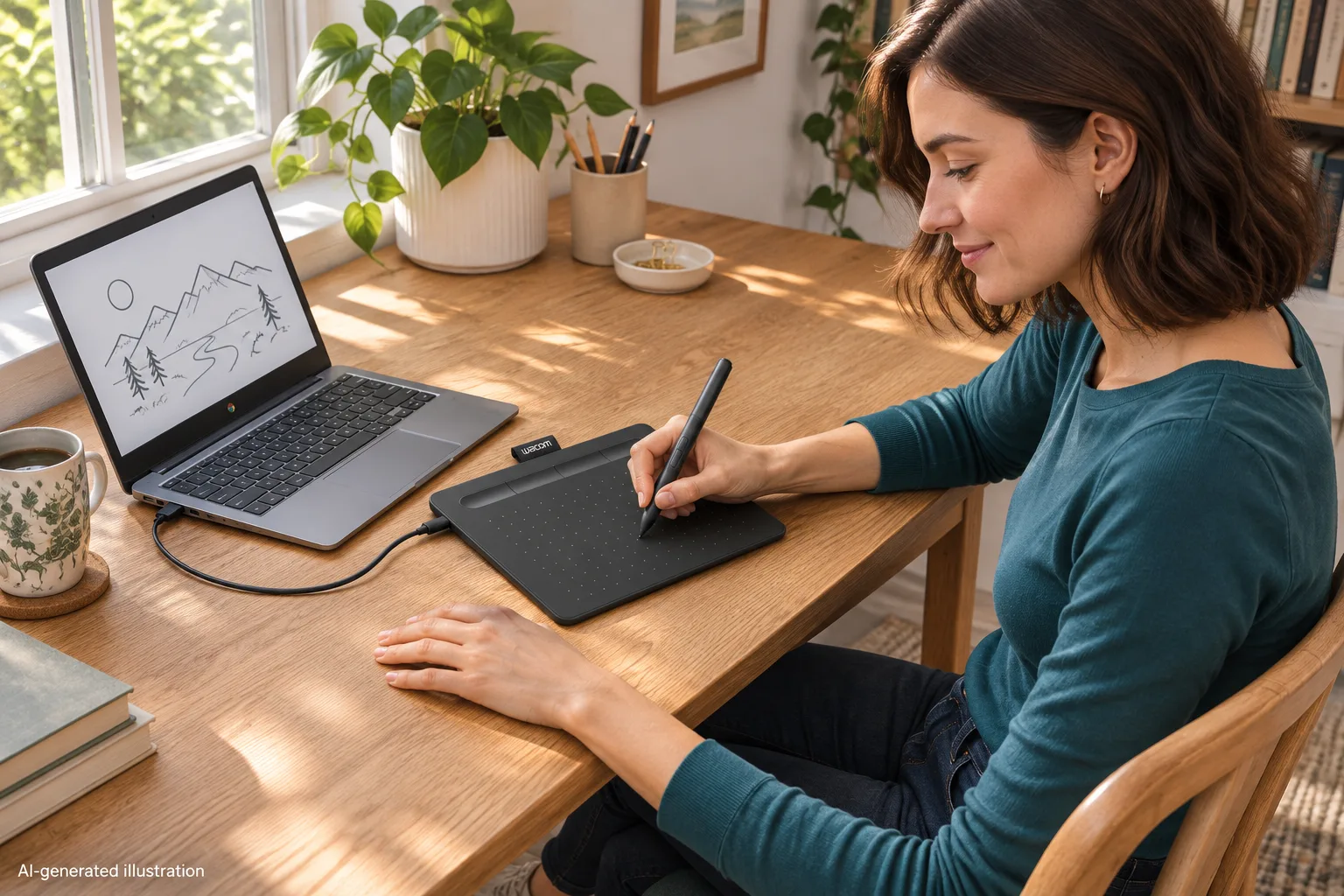
Pros
- + Official ChromeOS compatibility guidance exists
- + Compact 200 × 160 mm body with a battery-free pen
- + Wired setup avoids pairing a Bluetooth device
Cons
- - ChromeOS ExpressKeys are not supported in the checked FAQ
- - App support still determines available drawing features
- - Managed Chromebook USB restrictions can prevent use
Sources and verification status
Verification status: compiled from public sources
Data updated:
Verified on:
The Wacom Intuos Small Wired CTL-4100 can be used with a compatible Chromebook, but that does not promise the same settings and shortcuts available on a desktop computer. Wacom’s current troubleshooting guidance specifies ChromeOS 87 or later, kernel 4.4 or later and usable USB access. Its separate Chromebook ExpressKeys FAQ says those buttons are not supported for now, so do not buy it expecting configurable tablet shortcuts.
Offer and documentation checked November 12, 2026. This guide is compiled from public sources. We have not connected the tablet to a Chromebook, installed software or tested pressure response.
Which Wacom Intuos did we check?
The selected product is Wacom Intuos Small Wired CTL-4100, ASIN B079HL9YSF. A new $39.95 offer was in stock, sold and shipped by Amazon.com for the sample US destination. The listing showed 4.6 stars and 24,001 ratings. Shared listing feedback does not establish that your Chromebook, school policy or drawing application is compatible.
Wacom’s names need care here. Intuos is not interchangeable with Wacom One or One by Wacom, and this wired model is not the CTL-4100WL wireless version. We initially considered a different Wacom product but excluded it when its detail page did not show an available new offer. This guide applies to the exact wired Intuos selected above.
Which setup fits your Chromebook plans?
| Setup or requirement | Price status | Key specification or limitation | Best for |
|---|---|---|---|
| Intuos Small Wired CTL-4100 | $39.95 new | USB connection; 152 × 95 mm active area | Basic pen input on a compatible device |
| Same tablet with Chromebook keyboard shortcuts | Same selected offer | Keep required commands on the keyboard or supported app controls | Buyers who can work without tablet-button customization |
| Intuos Wireless CTL-4100WL | Not price-checked here | Different hardware; verify its own Chromebook connection guidance | Buyers specifically comparing wireless hardware |
| A standalone drawing tablet or computer | Not price-checked here | Different product category with its own screen and software | Buyers who do not want a separate Chromebook |
These are decision routes, not a ranking of unverified alternative products. The selected Intuos has no drawing display and does not run a drawing app by itself. You draw on its surface while watching the connected computer’s screen.
View Current Offers on Amazon →
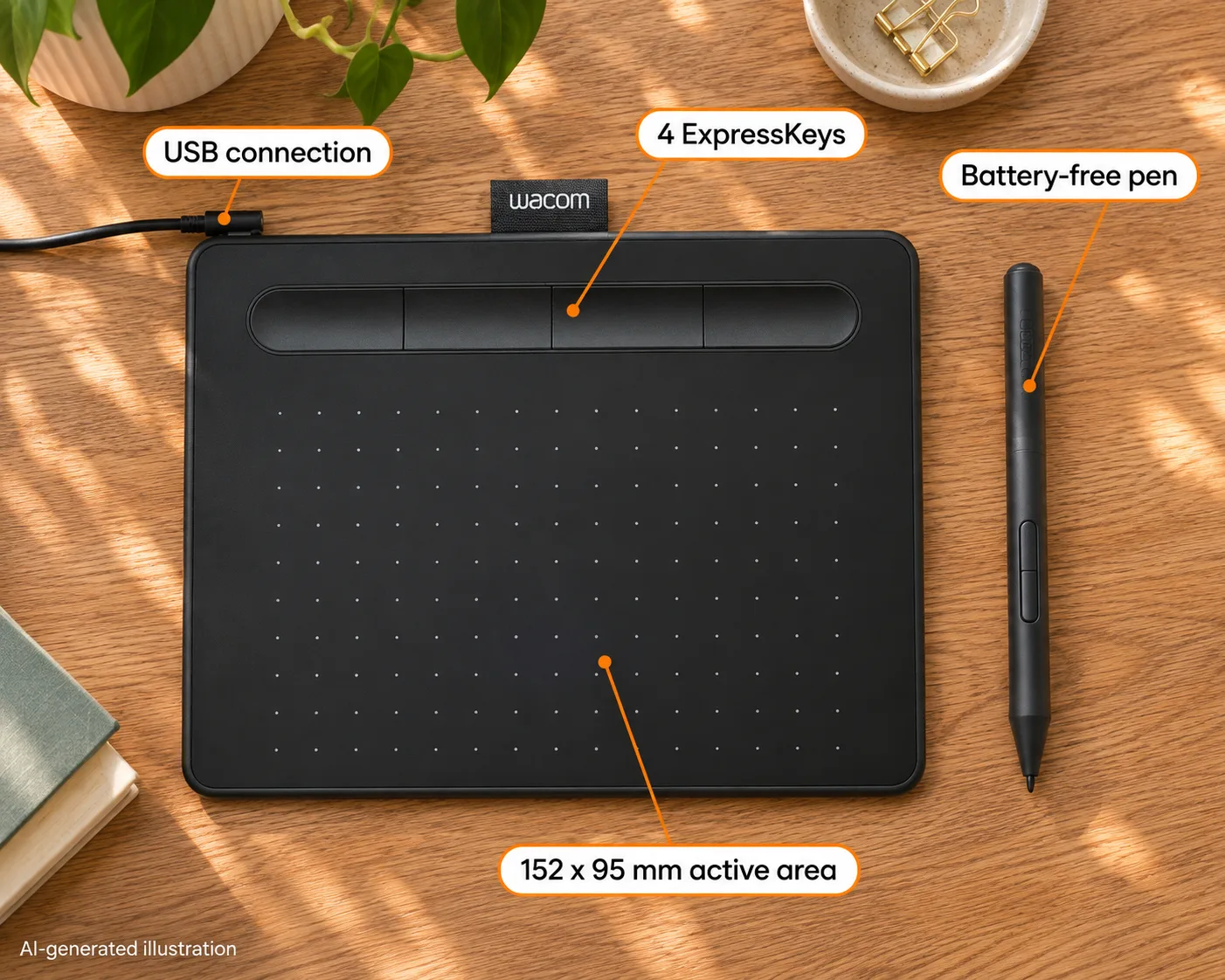
AI-generated illustration — enlarged CTL-4100 appearance, pen and active-area labels; the four buttons are not proof of ChromeOS ExpressKey support.
What should you check before ordering?
Begin with the Wacom ChromeOS troubleshooting guidance. Its specific requirements are ChromeOS 87 or later and kernel 4.4 or later. It also tells users to check USB connection and whether access is blocked. An older compatibility article uses less specific kernel wording; we use the more detailed troubleshooting requirement rather than lowering it by assumption.
For a personally owned Chromebook, identify the actual operating-system version and usable port arrangement. The checked package lists a USB-A connection cable. If your computer offers only USB-C ports, establish the appropriate data connection rather than assuming any cable or charging accessory will do. We have not verified an individual adapter.
For a school- or employer-managed Chromebook, ask the administrator whether this USB input device is permitted. A compatible operating system is not enough if management policy blocks the connection. Resolve that before spending money, particularly if the tablet is intended as a student gift and cannot be tried on another computer.
Do you need to download a Wacom driver?
Wacom’s Chromebook setup is different from its Windows and macOS setup. Do not expect the desktop driver installer to create a ChromeOS control panel. A Chromebook-compatible connection does not mean that every menu shown in a Windows setup video will appear on the laptop.
That distinction is practical for beginners. If the pen works but a particular configuration window is missing, the next question is whether that feature is available on ChromeOS, not which unrelated installer to download. Use the Intuos setup guidance for the operating system actually in use.
A first drawing tablet also introduces a different hand-eye arrangement from drawing directly on a screen. The compact surface can suit a small desk, but we have not tested how its mapping feels on a particular Chromebook display. Treat that as a personal workflow choice rather than a measurable performance claim from this article.
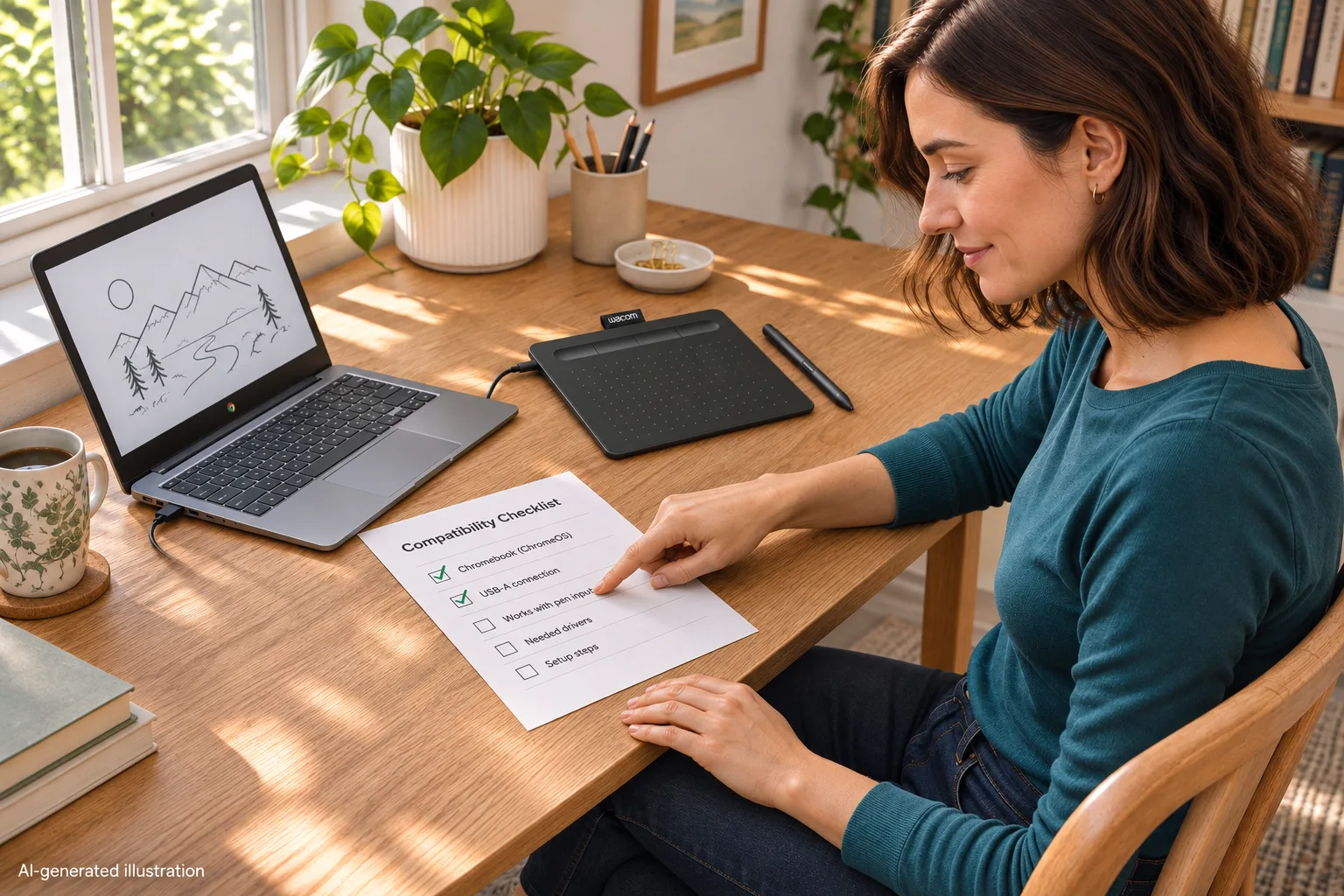
AI-generated illustration — a conceptual compatibility checklist, not a verified app or driver installation.
Why are ExpressKeys a separate buying question?
The tablet visibly has four top buttons, but physical buttons and supported configuration are different things. Wacom’s Chromebook ExpressKeys FAQ, marked updated May 15, 2025, says the ExpressKeys are not supported by ChromeOS for now. We checked that published answer on the research date.
The FAQ’s mention of a possible future solution is not evidence that an update has arrived for your device. We found no basis to promise custom undo, brush-size or other mappings on this exact CTL-4100 Chromebook setup. Buyers who depend on those functions should require explicit current confirmation, rather than treating a planned feature as included.
This is a real drawback for someone attracted by shortcut-heavy desktop demonstrations. An alternative workflow may keep commands on the Chromebook keyboard or within the application. That can be acceptable, but it should be a deliberate compromise. A different Intuos Pro discussion is not a verified workaround for the wired Small Intuos.
Will pressure sensitivity work in every app?
Wacom specifies 4,096 pressure levels for this tablet, but a hardware specification does not establish the behavior of every Chromebook application. Confirm whether the exact app recognizes pressure input and exposes the brush controls you need. A functioning pointer is a narrower achievement than a complete drawing workflow.
List the tasks you actually want: handwriting notes, simple sketches or brush work with pressure variation. Then check the application’s support for those tasks on ChromeOS. Avoid buying on a generic “works with software” statement if a particular feature is essential. We did not benchmark latency or verify any paid software bundle as part of the offer.
The official product information lists a 200 × 160 × 8.8 mm body, 152 × 95 mm active area, and a battery-free pen approximately 143.2 mm long. The active area is smaller than the whole tablet; do not mistake the outside dimensions for the drawable rectangle.
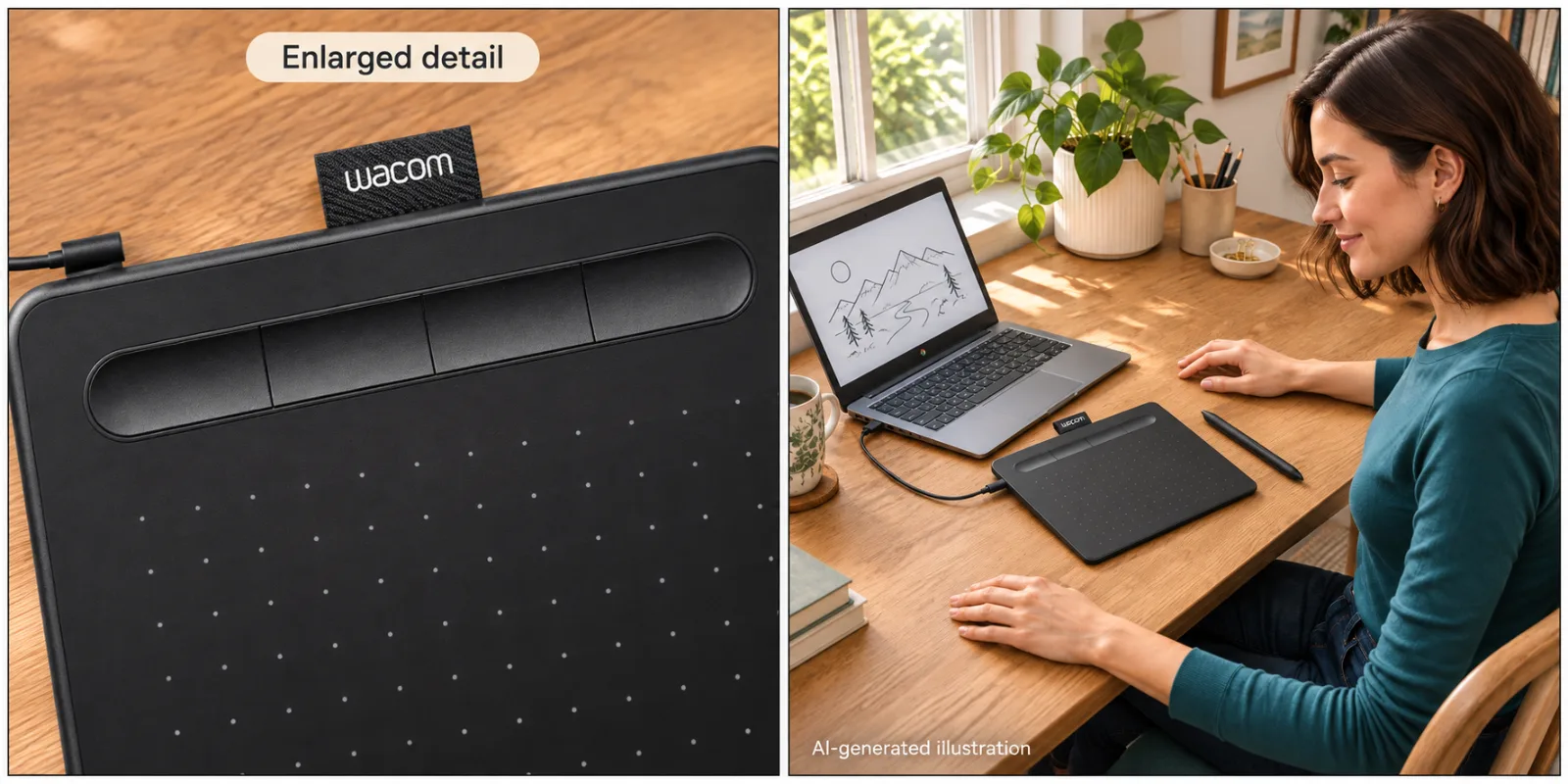
AI-generated illustration — left: enlarged button detail; right: approximate tablet scale beside a Chromebook. No shortcut test is shown.
What owners say about Chromebook use
- Basic connection worked for one exact-model owner. On September 4, 2023, Thepotatopixie described buying an Intuos Small for use with an Acer Chromebook 315 and edited the post to identify CTL-4100. They said the tablet was working. That is useful evidence of one real setup, not a guarantee for every Chromebook revision. Read the post.
- The same owner still had workflow concerns. In that same dated post, they described stabilization as unsatisfactory and asked about customizing buttons without a desktop driver. This is the other side of the same person’s experience, not a second independent negative report. It illustrates why “connects” and “does everything I want” are separate questions. Read the full context.
We excluded a one-word response without useful detail. We also did not treat reports about Intuos Pro or older CTL-490 hardware as proof that this CTL-4100 supports a particular workaround. No owner comment substitutes for the current official compatibility limits.
Who should buy it, and who should skip it?
Consider the wired Intuos for a beginner who has a compatible Chromebook, a suitable drawing app and no requirement for configurable tablet buttons. Its small footprint and battery-free pen give that choice concrete reasons beyond a favorable combined rating.
Skip it if Bluetooth is essential, because this selected wired unit does not have it. Also pause if school USB restrictions are unresolved or if your main workflow depends on ExpressKeys customization. Buying a more expensive model without checking those same requirements would not automatically solve the problem.
For a gift, confirm the recipient’s Chromebook model and intended app first. An attractive pen tablet can be an awkward present when the laptop cannot accept the device or the expected shortcut workflow is unavailable. The useful promise is a verified setup, not an unsupported assurance that every Chromebook accessory works everywhere.
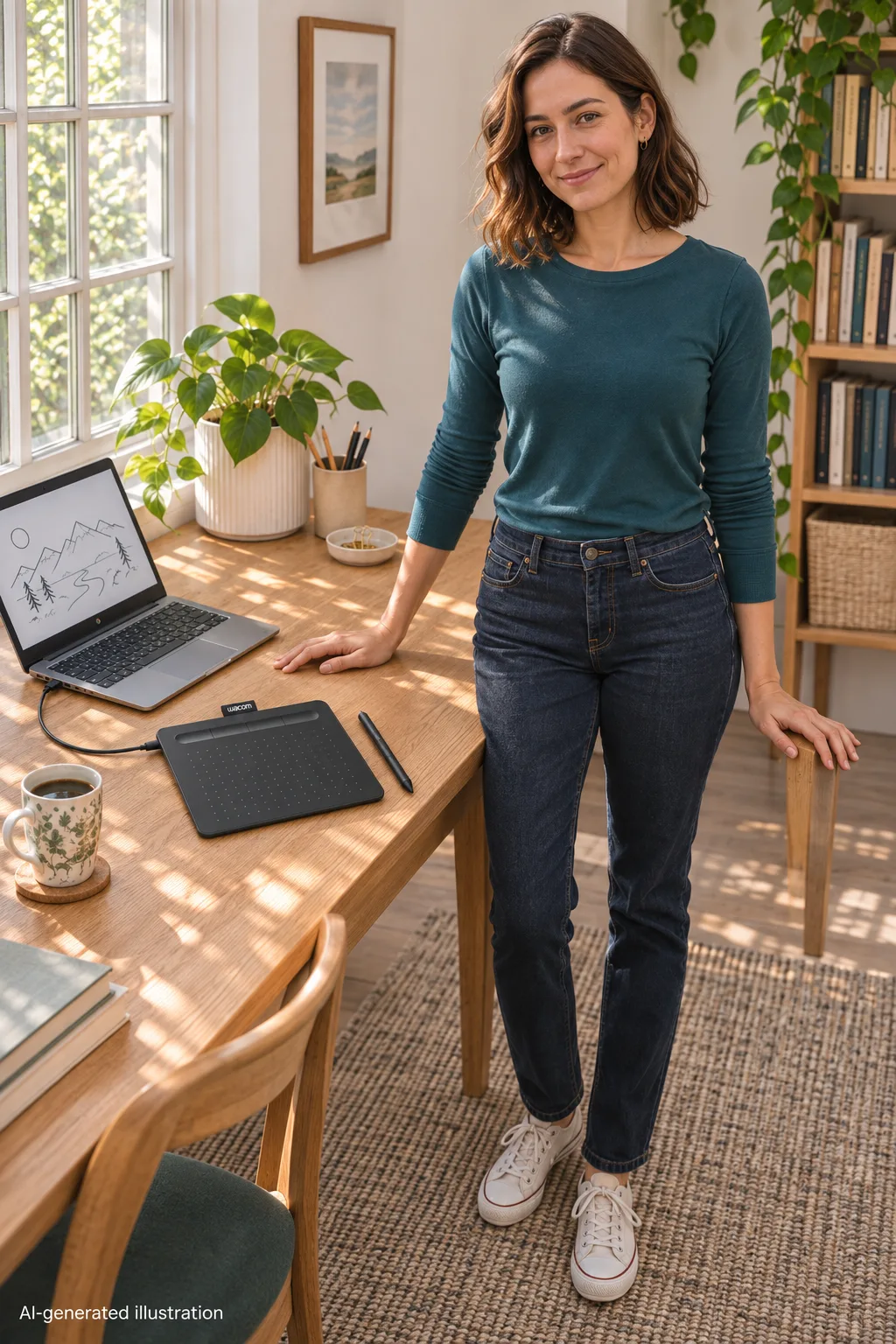
AI-generated illustration — the same person and compact tablet; not a measured pressure-response or latency test.
How we researched this
We matched the Amazon Small Wired offer with Wacom’s product information, setup instructions and separate compatibility and ExpressKeys answers. The dated owner report is identified as one mixed experience. Images are AI-generated illustrations, not app demonstrations, latency tests or proof that ChromeOS shortcuts work.
FAQ
Does the wired CTL-4100 work with Chromebook?
Wacom lists Intuos compatibility with supported ChromeOS systems. Its troubleshooting guidance specifies ChromeOS 87 or later and kernel 4.4 or later, with USB access allowed. Verify your device and app before buying.
Do I install the Windows Wacom driver on ChromeOS?
No. Wacom’s Chromebook setup uses the compatible ChromeOS connection rather than installing the Windows or macOS driver. A missing desktop settings panel is not fixed by downloading the wrong operating-system installer.
Can I customize the four ExpressKeys on Chromebook?
The Wacom Chromebook ExpressKeys FAQ checked for this article says they are not supported for now. Its mention of a possible future update is not a promise of an available feature on your device.
Does this selected model connect by Bluetooth?
No. The selected Small Wired CTL-4100 is a wired product. Information about Intuos Wireless CTL-4100WL does not add Bluetooth to it.
Will every drawing app support pressure and shortcuts?
Do not assume so. Tablet connection, application pressure support and shortcut configuration are separate compatibility questions. Verify the exact app and required features before purchase.